Tatsujin
A Taiko no Tatsujin clone game implemented on PYNQ-Z2 FPGA with LED matrix display
蘇凡誠 (Fan-Cheng Su) 、張哲維 (Che-Wei Chang) 、許評詔 (Ping-Chao Hsu)、陳柏元 (Po-Yuan Chen)
Tatsujin is a FPGA-based rhythm game project that recreates the classic Taiko no Tatsujin (太鼓達人) gameplay experience. It’s a final project for Logic Design course, this system uses Verilog to implement game logic on a PYNQ-Z2 FPGA board, with three large buttons simulating drum inputs and a full-color LED matrix for visual display. The game features multiple songs, scoring system, and animations across different game states.
Project Goals
-
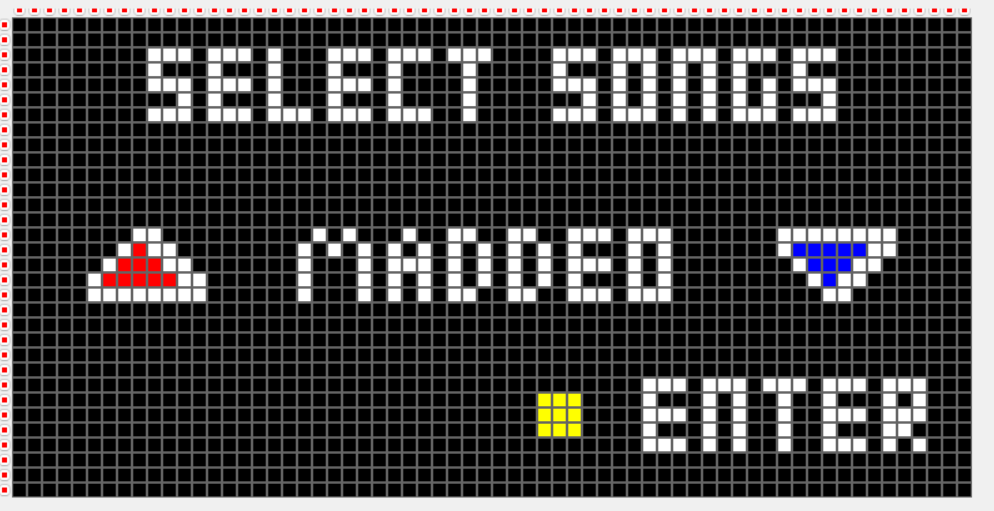
Level Selection Screen: Use red and blue buttons to switch between challenge levels, and yellow button to confirm and start the game. The screen displays the level name and operation instructions.
-
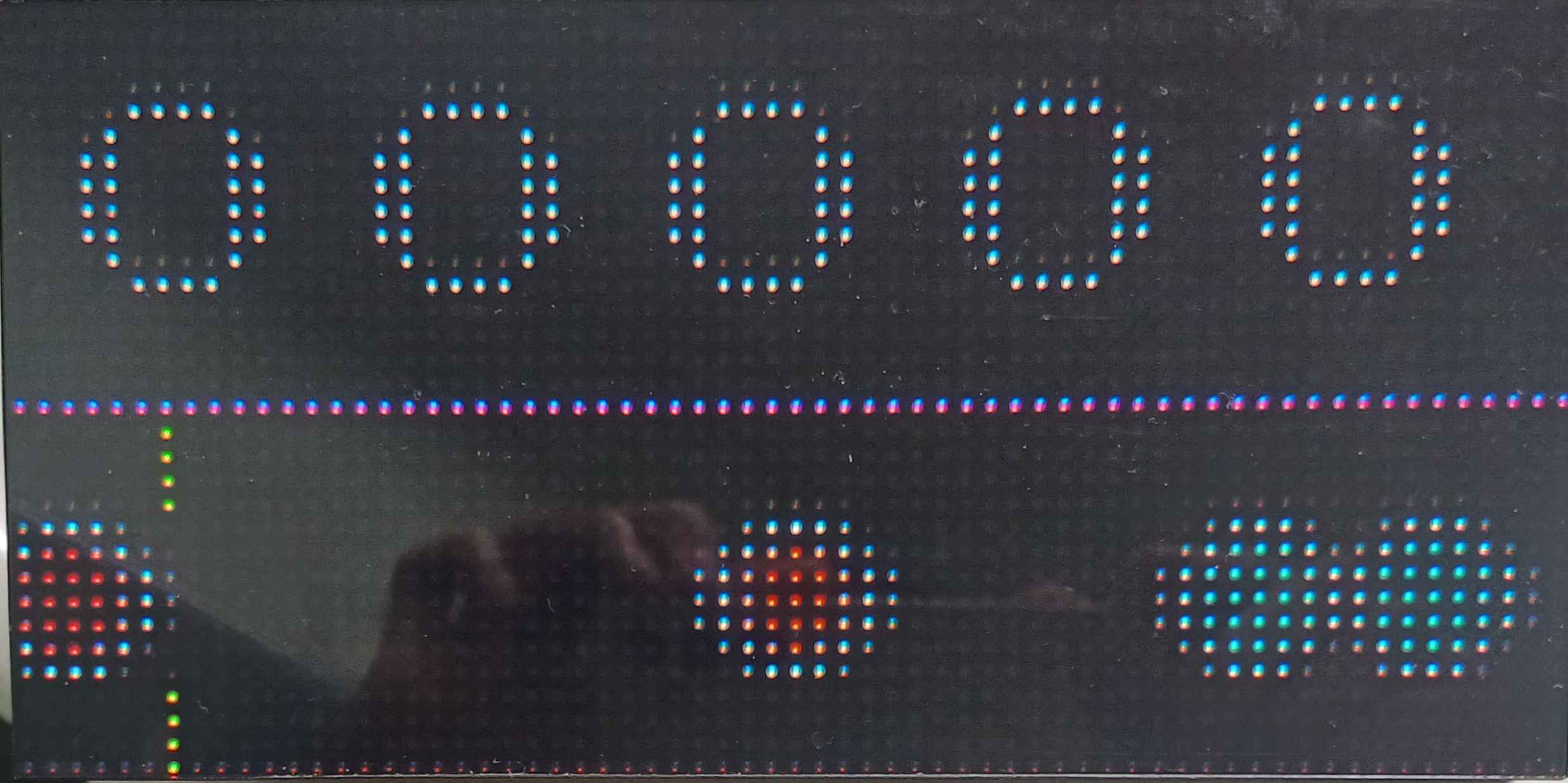
Gameplay Screen: Divided into two sections. The upper section displays the current accumulated score, while the lower section shows the note display area. Players must press the corresponding button when red or blue notes approach the judgment line. The closer to the judgment line, the higher the score, and consecutive correct hits provide score multipliers.
-
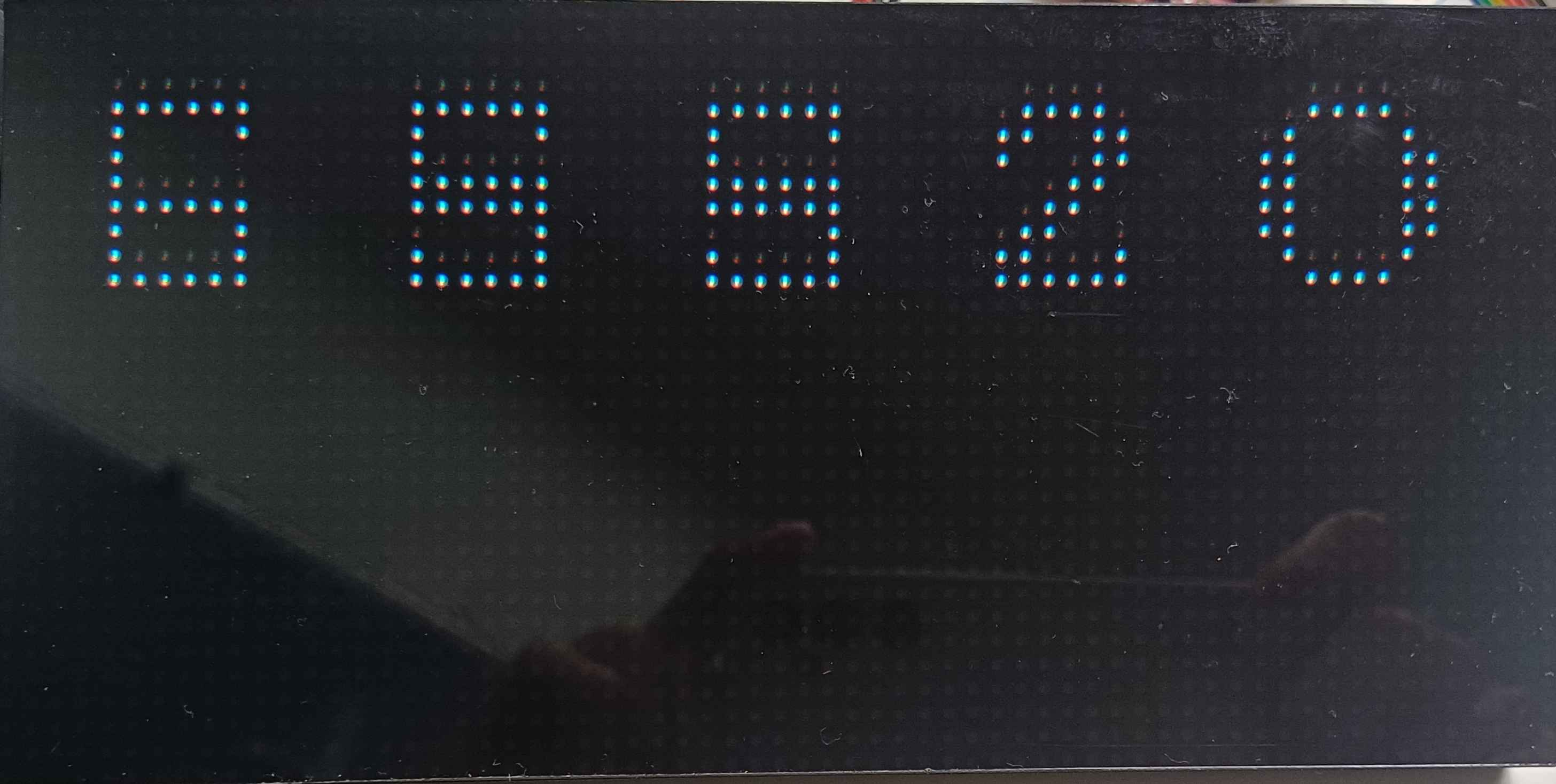
Score Summary Screen: Displays the player’s final score on the screen and prompts to press the yellow button to return to the level selection screen for replay.
Implementation Details
The circuit is designed using Verilog and implemented on PYNQ-Z2, three large buttons, a full-color LED matrix, and breadboard to realize the Tatsujin game.
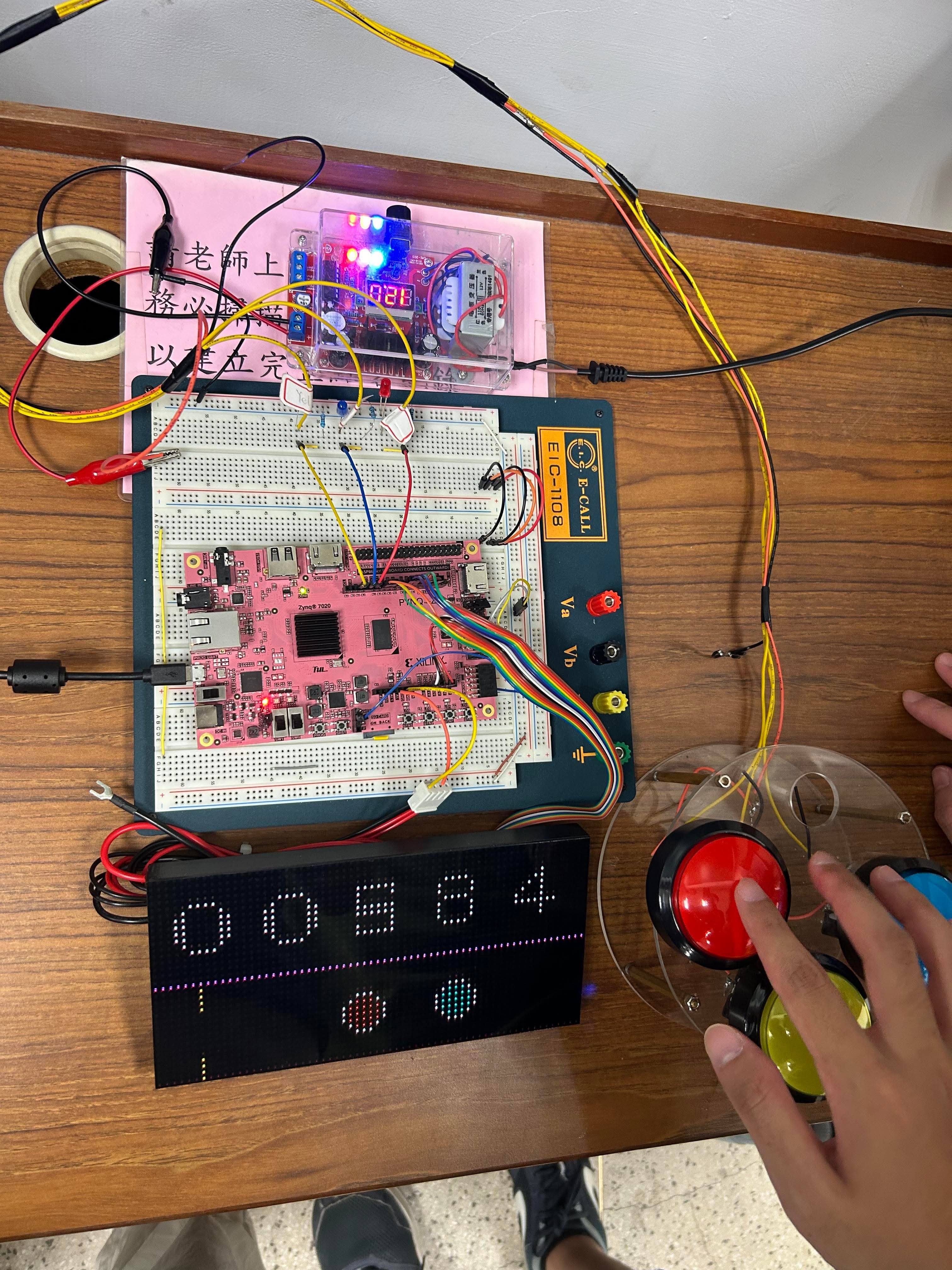
Detailed implementation:
-
State Machine: A Finite State Machine (FSM) controls the overall game flow. The
state_buttonmodule manages state transitions betweenSTART,MENU,PLAY, andFINISHstates, and broadcasts the current state to other modules for coordinated operation. -
Screen Display (Matrix Rendering): The system utilizes
casestatements to store output data for each screen state and renders them on the LED matrix accordingly. Screen data is connected based on the current game state. When notes are present, the system reads note images from memory, positions them correctly using offset calculations, and then writes the screen data into the buffer frame by frame according to the display panel specifications. -
Note Display (Music Score Recording): Each note is encoded using two bits—00 represents no note, 01 represents red, and 10 represents blue. Offset values are applied to create smooth movement effects as notes travel across the display.
-
Scoring Mechanism: The scoring system calculates points based on the player’s hit accuracy and combo streaks, providing real-time feedback. Upon button press, the system checks if a note exists at the current detection position, calculates the score based on timing accuracy (determined by offset), and removes the note upon successful hit.
Architecture
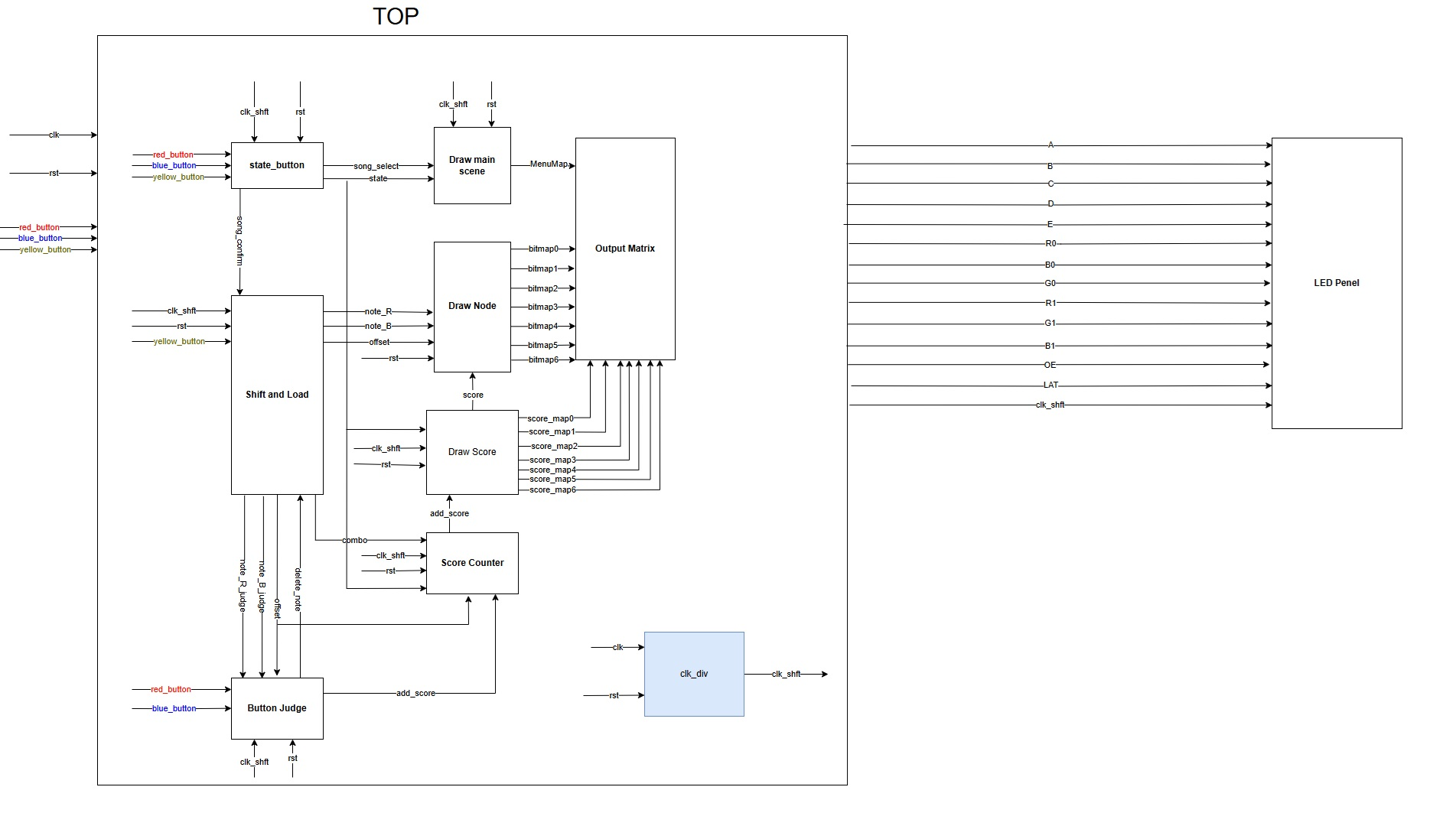
The system consists of the following submodules:
- Shift_Load: Handles data shifting and loading operations
- state_button: Controls game state transitions
- Draw_main_scene: Renders main game scenes
- Draw_node: Draws note graphics
- Draw_score: Displays score information
- Score_Counter: Manages score calculation
- Button_judge: Processes button input and judgment
- clk_div: Clock divider for timing control
- Output_penel: Output panel controller
Usage Instructions
Starting the Game
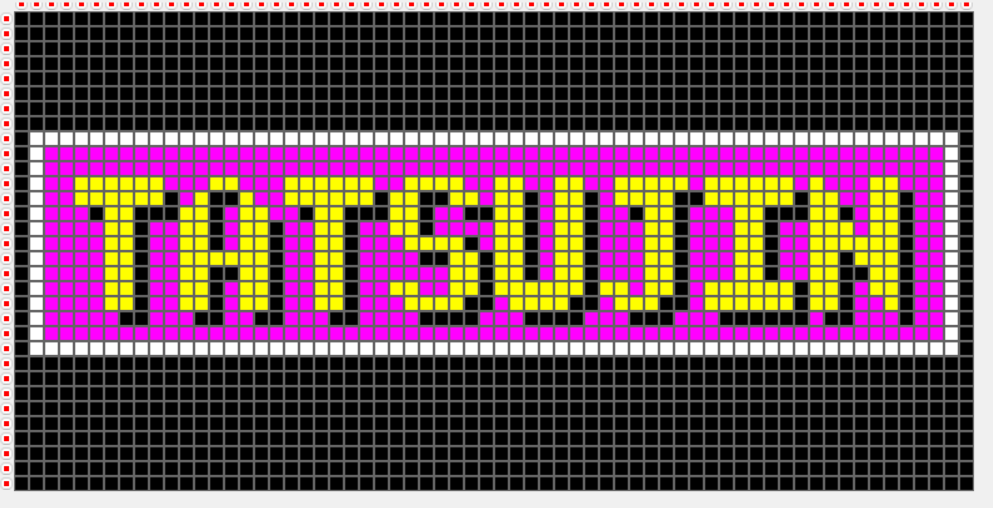
Press any button from the start screen to enter the song selection menu. Three songs are available: Rick Roll, Last Night, and Good Night Miss.
- Red button: selects previous song
- Blue button: selects next song
- Yellow button: confirms the song selection
In Game
After starting the game, you will see the interface below:
- Score Interface: Displays the current accumulated score
- Note Interface: Shows the position of Taiko notes
Follow the prompts to hit the corresponding keys. Use blue and red buttons to hit corresponding notes. Accurately hit notes in rhythm with the music to achieve high scores.
End Game
After the game ends, the system displays your score. Press the yellow button to restart the game.
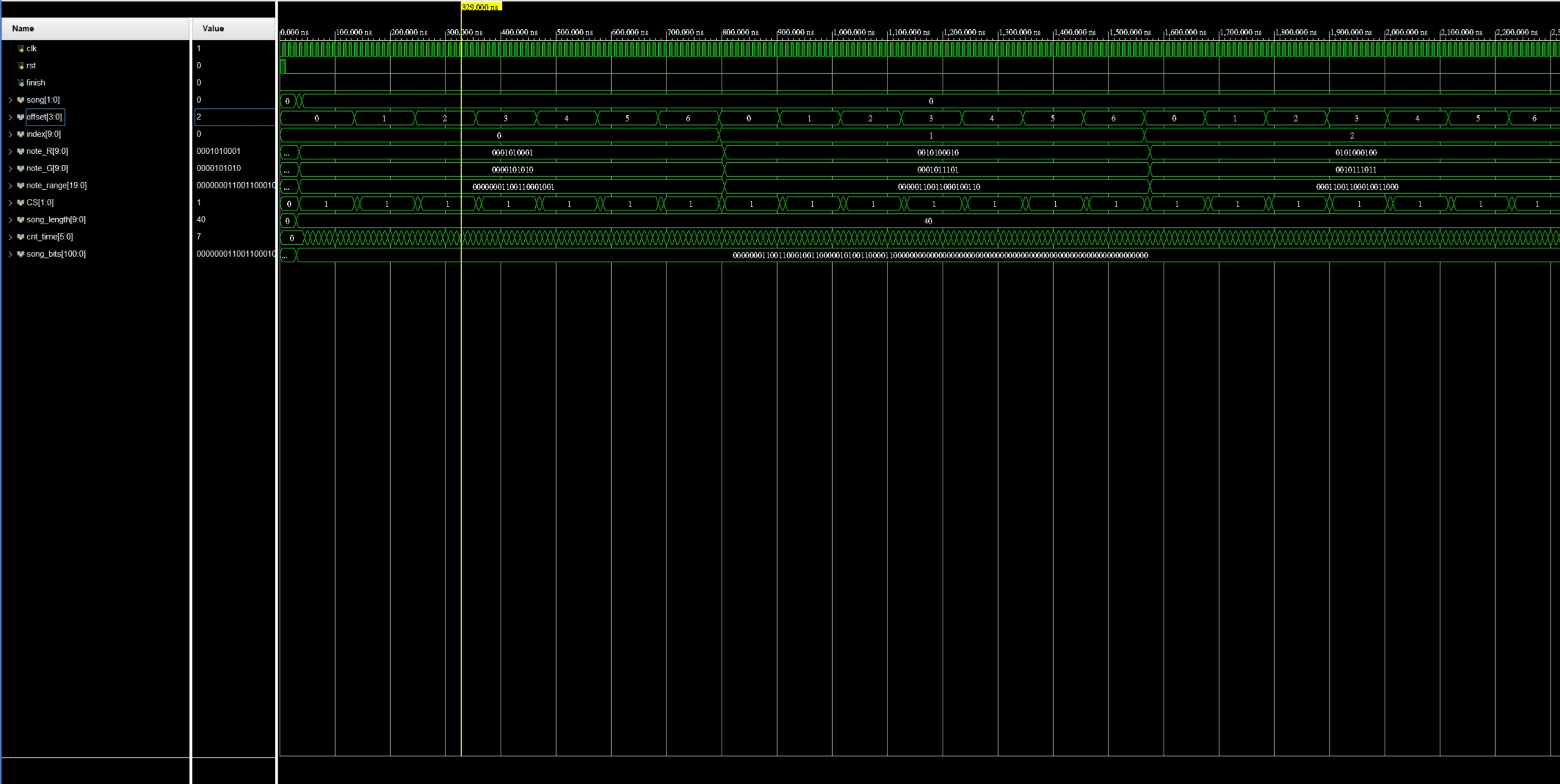
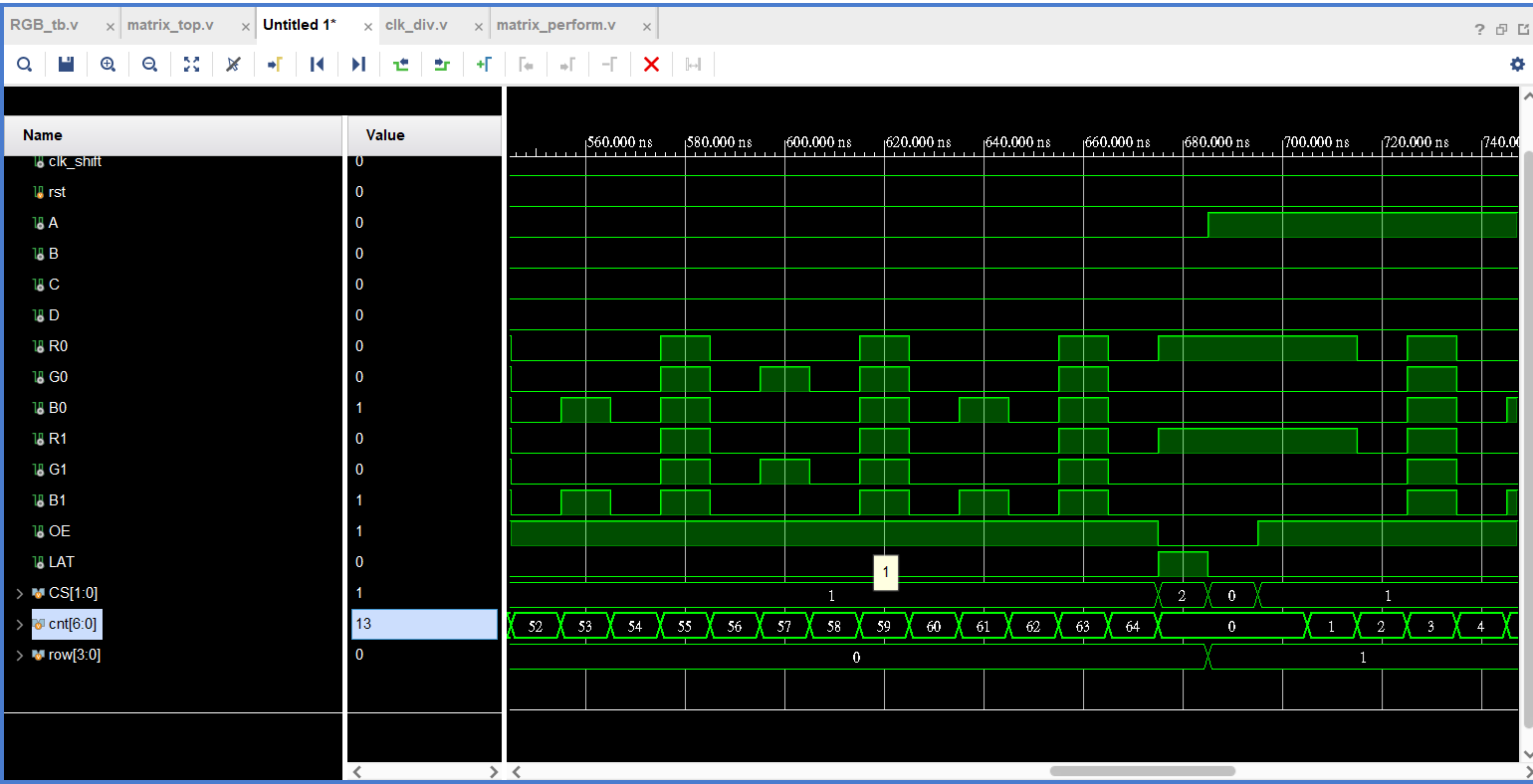
Vivado Simulation Waveforms Results